02 / 10

Your menu, day to day

Prices, sold-out items, new dishes, and undo.

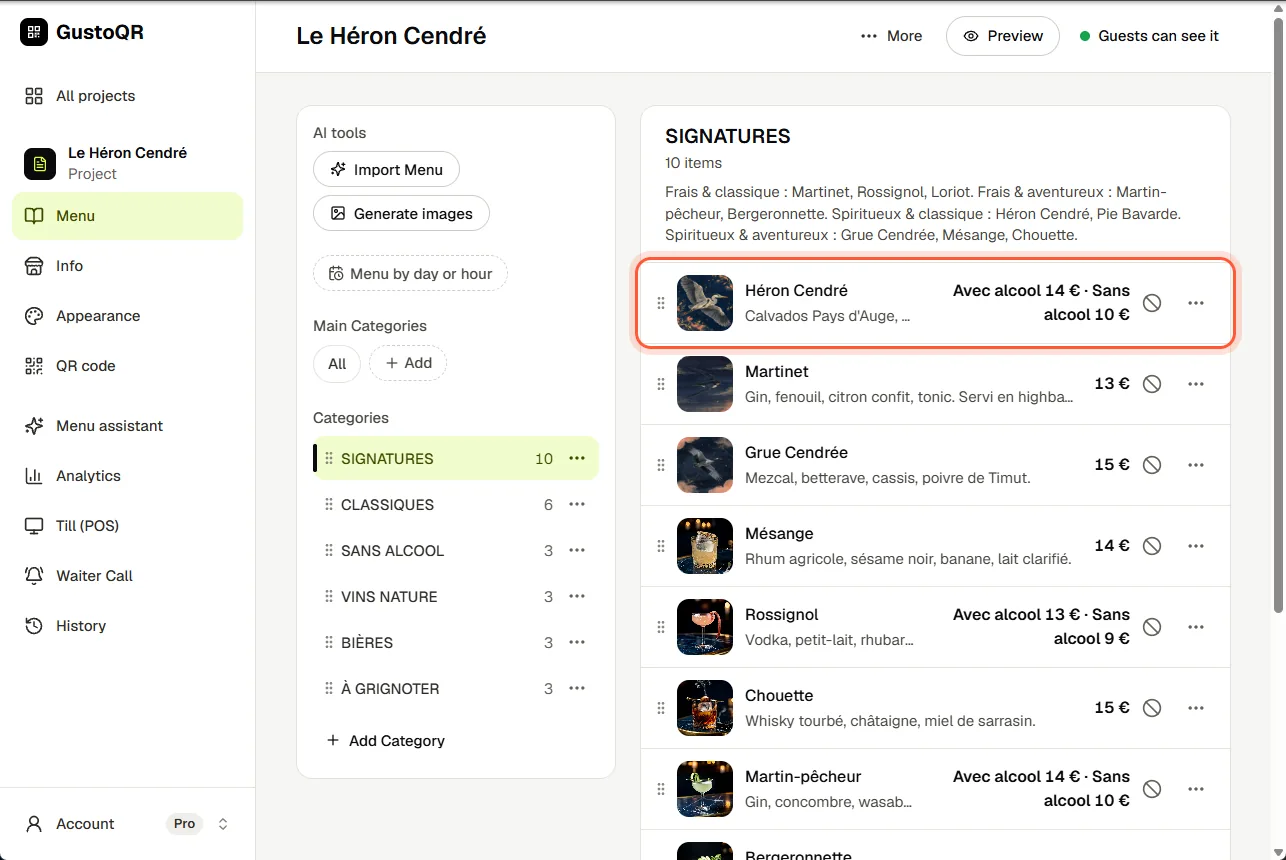
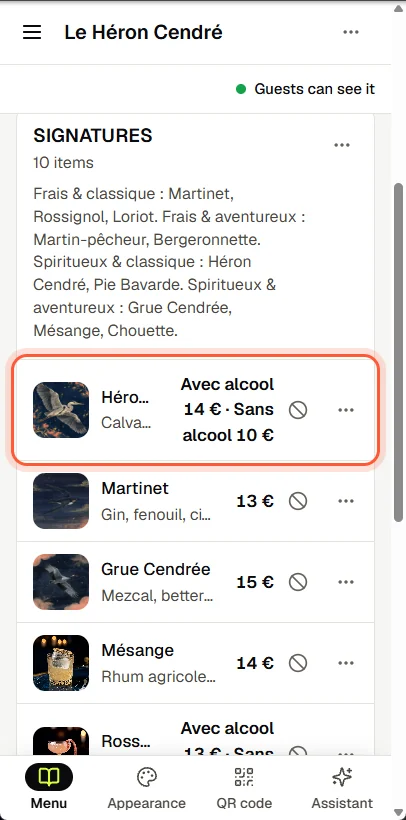
Change a price

  1. Open Menu and tap the item.
  2. Type the new price.
  3. Tap Save, or the tick at the top. To throw the change away, tap Cancel.
Change a priceChange a price

Mark something as sold out

  1. In Menu, tap the crossed circle beside the price of the item.
  2. Choose Sold out today: it comes back by itself the next morning. With Sold out until… you pick the day and time yourself.
  3. To put it back sooner, tap the sold-out label on the item.

Add an item with a photo

  1. In Menu, open the category and tap Add item under its last item.
  2. Type the name and the price.
  3. Tap Upload Photo and pick a picture from your phone or computer. Choose from Catalogue offers ready-made pictures.
  4. Tap Add to menu.

GustoQR can also draw a photo for you. That uses AI credits.

Add a category or change the order

  1. In Menu, tap Add Category and give it a name, such as Starters, Drinks or Treatments.
  2. To move a category or an item, tap the three dots beside it and choose Move up or Move down.

A different menu on some days or hours

  1. In Menu, tap Menu by day or hour. On a phone, until you have one, it is inside the AI tools button.
  2. Give it a name, such as Sunday menu or Breakfast, and choose its days and hours.
  3. Guests scan the same QR code. They see this menu at its time and your normal menu the rest of the time.

Undo a mistake

  1. Right after a change, a message appears at the bottom of the screen. Tap Undo in it.
  2. Later, open History. Each line says what one change did, such as a new price or a removed photo.
  3. Tap Go back to this on the line you want: the menu is as it was just before that change. You can undo that as well.

Going back also takes back changes to the look of the menu made after that moment.

Next · 03

The menu assistant

Still stuck?

Write to us in the chat. A person at GustoQR reads it and answers you.